Orders on Hold is a follow-up of your company’s history of pending orders. You can find it under
Sales Tracking - Order.
Search options
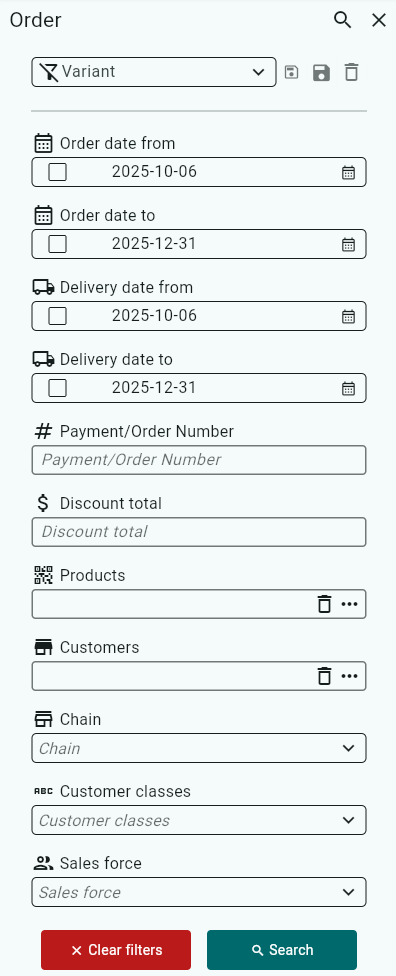
Inside Orders on Hold, you can filter your search by clicking the three lines to the left of Orders.
Products, dates, and customers are some of the options you can search by.
Once you have selected the search parameters you want to retrieve results for, click Search.

A list of current orders will now be displayed.
Under Free text, you can quickly find specific orders within your search selection by typing what you want to see, for example, a name.

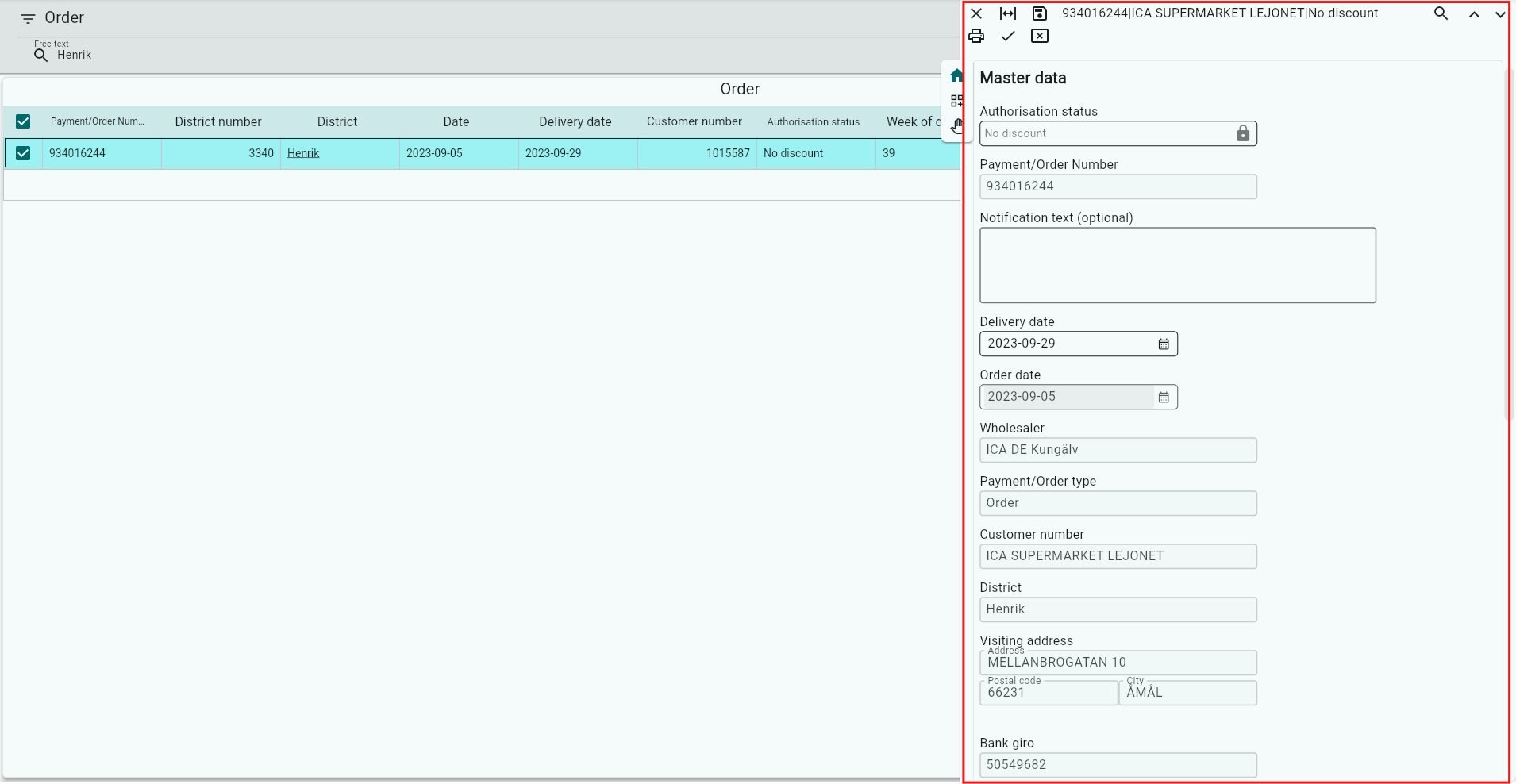
To open an order on hold, click on the row for the desired order, and a window will open on the right displaying information for that order.
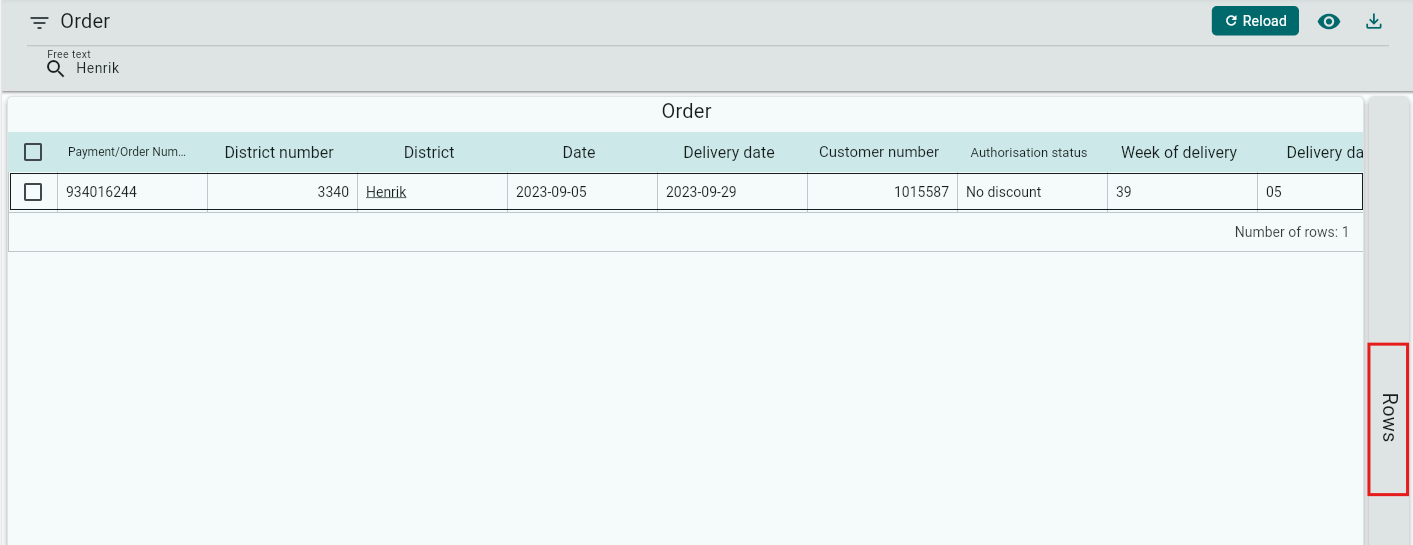
You can choose to view the lines included in your pending orders. Click Order Lines on the far right.
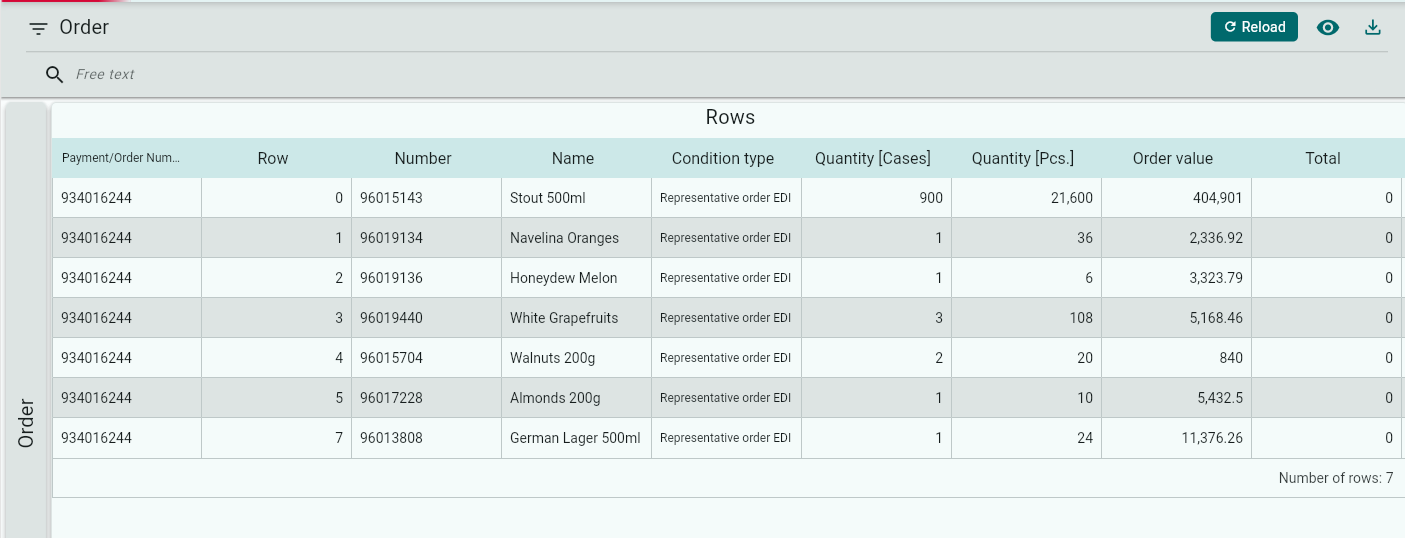
This will display the order lines for the search selection you made earlier.
A list of current order lines will now be displayed. Here, you can see how many lines are included in each order. Click on a line to open the entire order.
You can choose to group the report by any of the columns.
Drag the column you want to group by and drop it into the marked area.
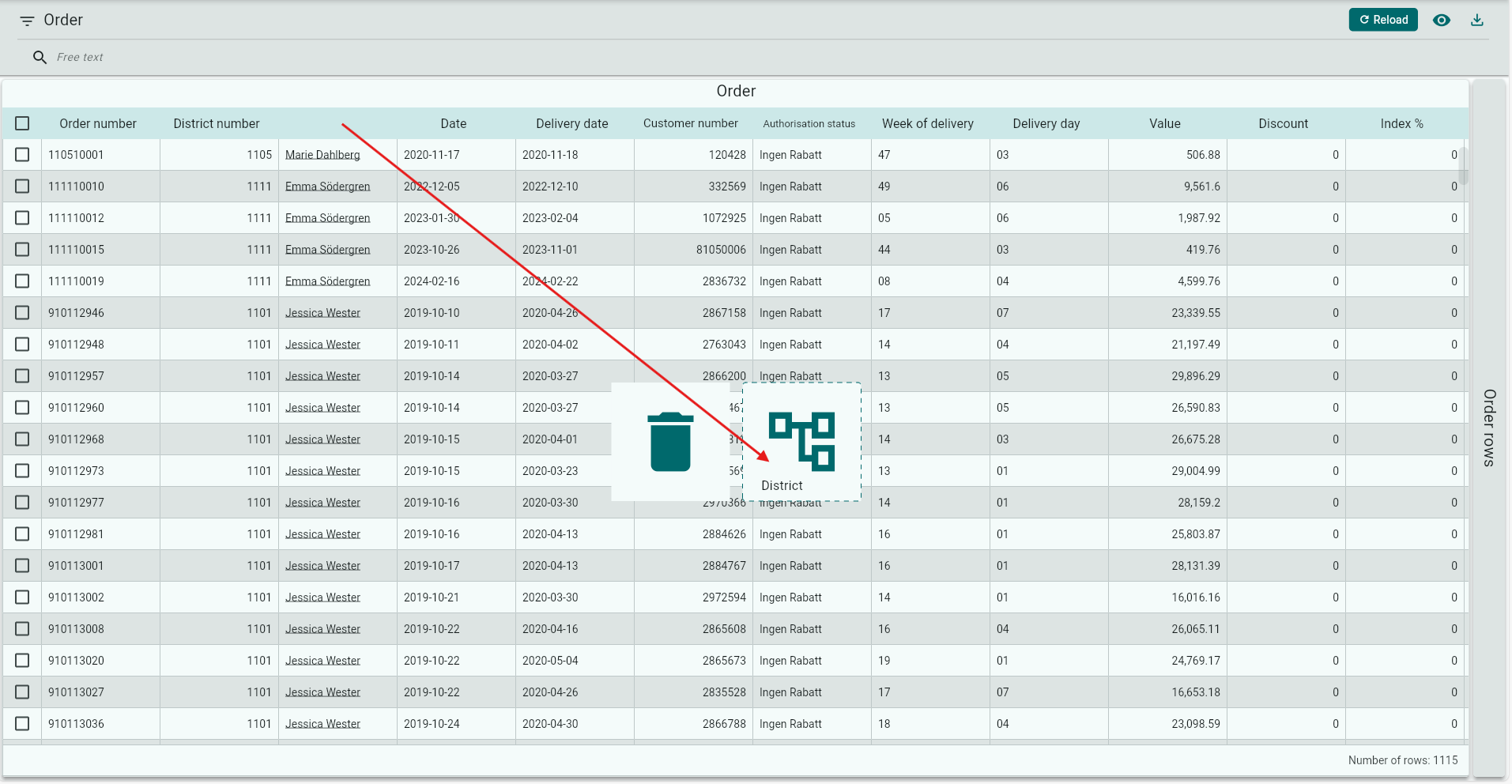
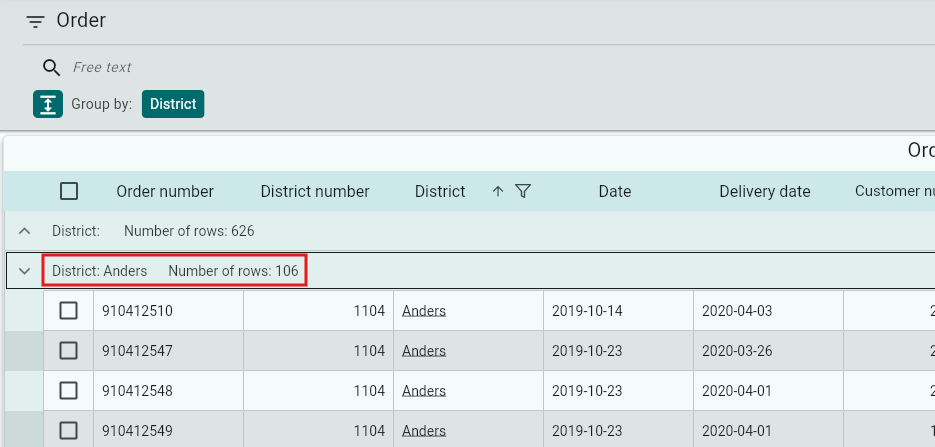
The report will then be displayed in a tree structure according to the column you chose to group by.
Click the arrow to expand the rows.
To view your report as before, click once on the box next to Grouping, for example “District” in the image below.
Click the Download button if you want to export your search selection to an Excel file.

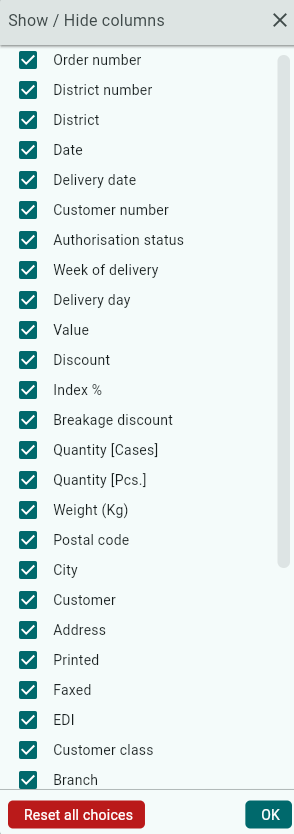
Using the Field Selector, you can easily hide fields you do not wish to see. 
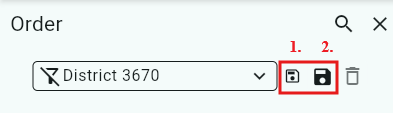
If you want to save your chosen search parameters for future use, you can save a variant.
Enter a name in the Variant field
Click Save
Save the variant for yourself only
Save for everyone if you want all Back Office users to have access to the variant.
The next time you open Orders on Hold, your variant will be available in the list.
Was this article helpful?
That’s Great!
Thank you for your feedback
Sorry! We couldn't be helpful
Thank you for your feedback
Feedback sent
We appreciate your effort and will try to fix the article