In the Campaign Summary, you can see how your campaigns are spread throughout the year.
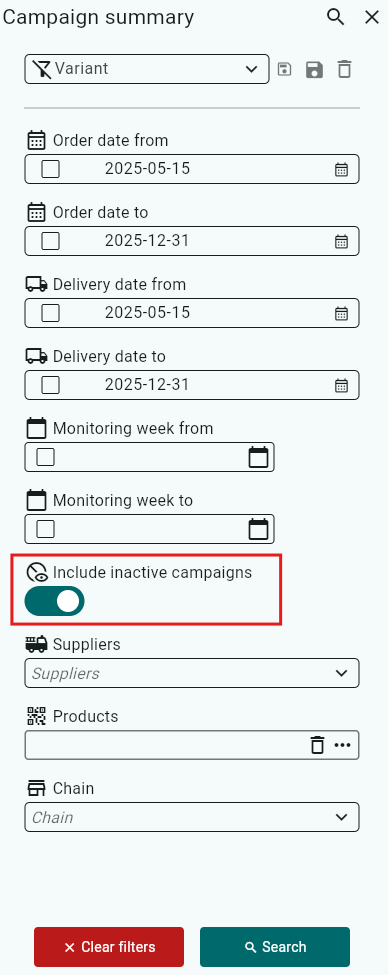
Select your search criteria to view a summary of active campaigns.
If you also want to see inactive campaigns, check that option before clicking Search.
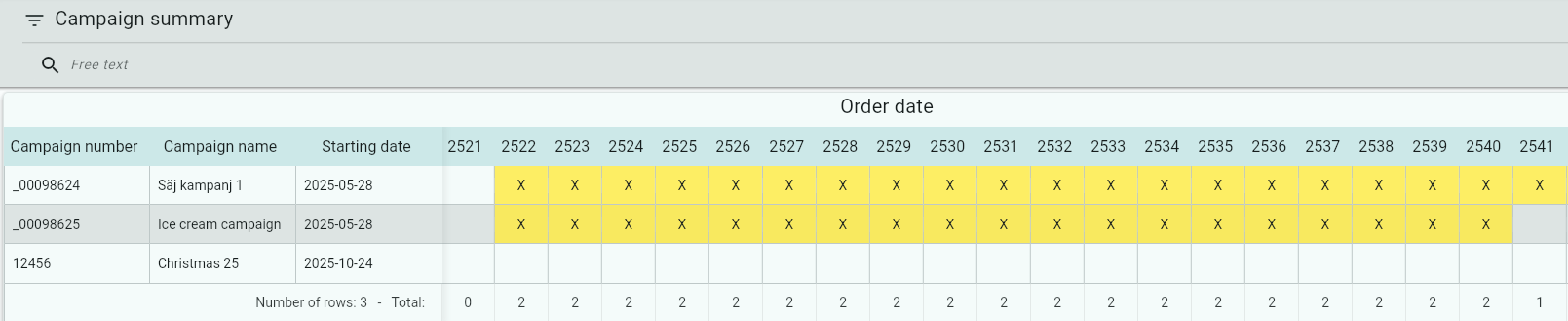
You will now see an overview of your active campaigns based on Order Date.
If there is a yellow X under the weeks, it means the campaign was created with dates that extend across those weeks.
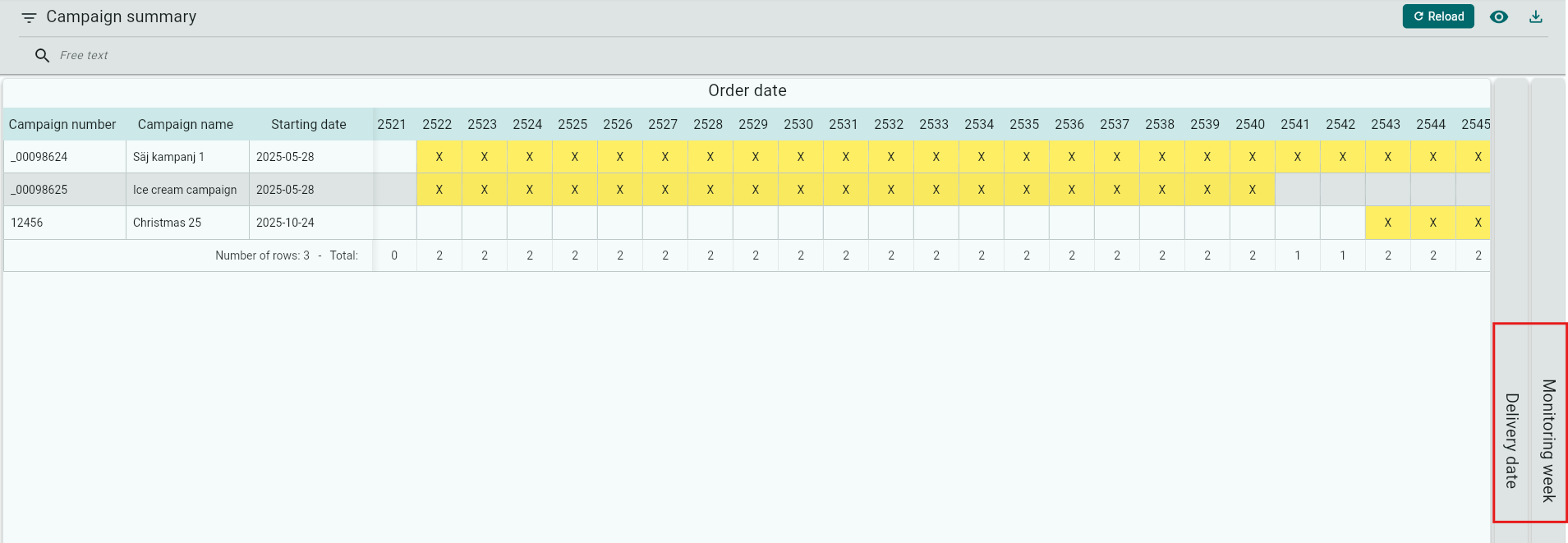
If you instead want to see an overview of campaigns based on Delivery Date or Follow-up Week, you can do so by clicking the corresponding tab on the far right.
Through Show / Hide Columns, you can easily hide fields you do not want to see.

Click Download if you want to export the search results to an Excel file.

You can choose to save your selection as a variant (this works the same way in all reports).
Enter a name in the Variant field.
Click Save.
Save the variant for yourself only.
Save for everyone if you want all Back Office users to have access to the variant.
The next time you open Campaign Outcome, your variant will appear in the list.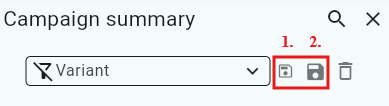
Was this article helpful?
That’s Great!
Thank you for your feedback
Sorry! We couldn't be helpful
Thank you for your feedback
Feedback sent
We appreciate your effort and will try to fix the article