The purpose of the Chain-Specific Listing / Assortment function is to define the listing status of an item/product for a specific retail chain. In addition to setting the listing status directly in the function, it is also possible to import the correct listing status using an Excel file.
The function is accessed via the main menu:
Administration / Assortment / Chain-Specific Listing.
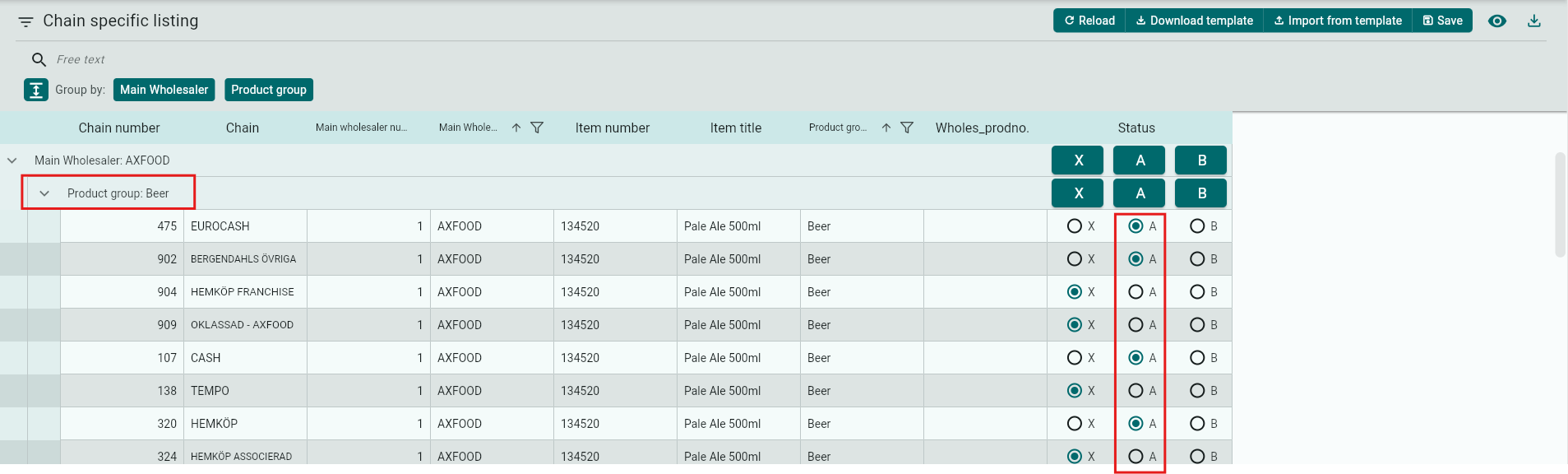
On this page, you can view all blocks and product groups. Using the dropdown menus, you can easily access the items and select the correct status for each product/item and chain.
Click Save to apply your changes.
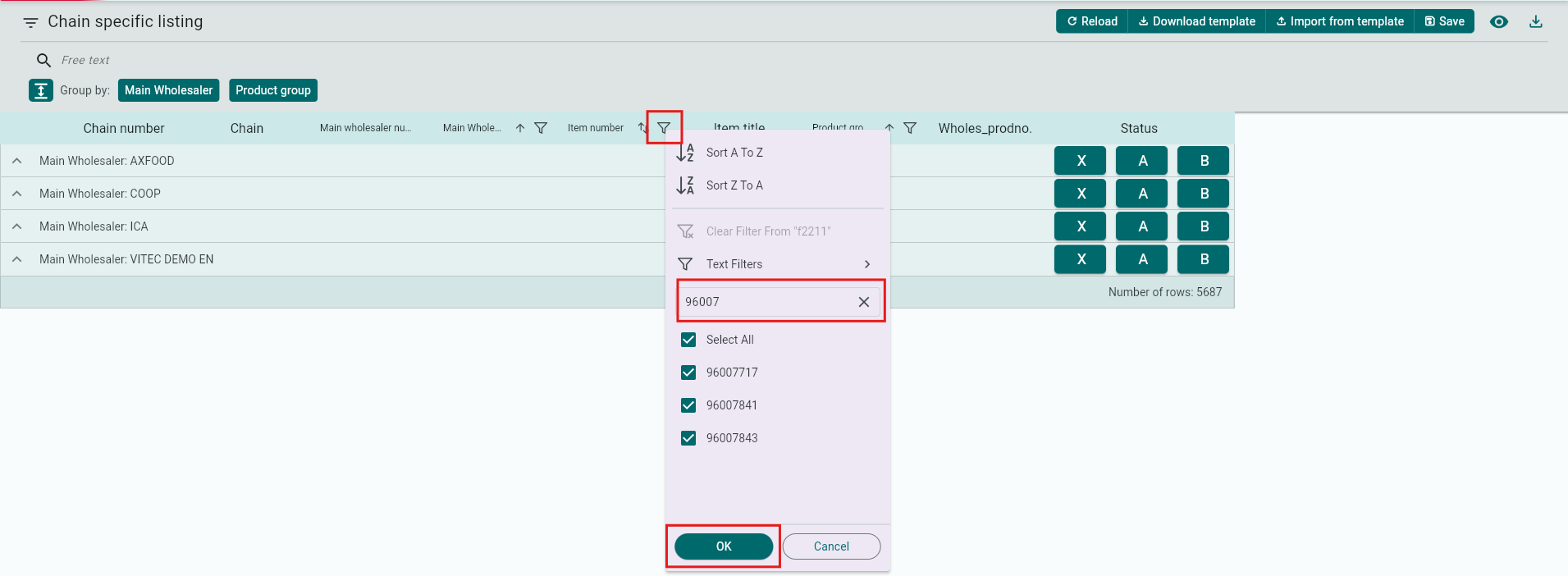
You can also search for items using the filter icon next to fields such as Item Number or Item Name to quickly find a specific product.
Ranking
In the view below, you can rank the items at chain level, which means the ranking can differ between chains.

You can also search for an item using the filter by clicking the filter icon to find the correct product/item.
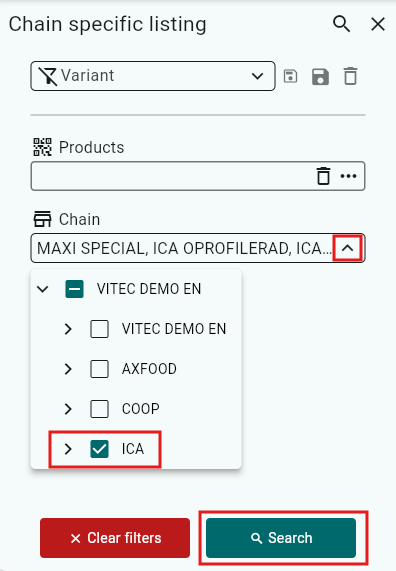
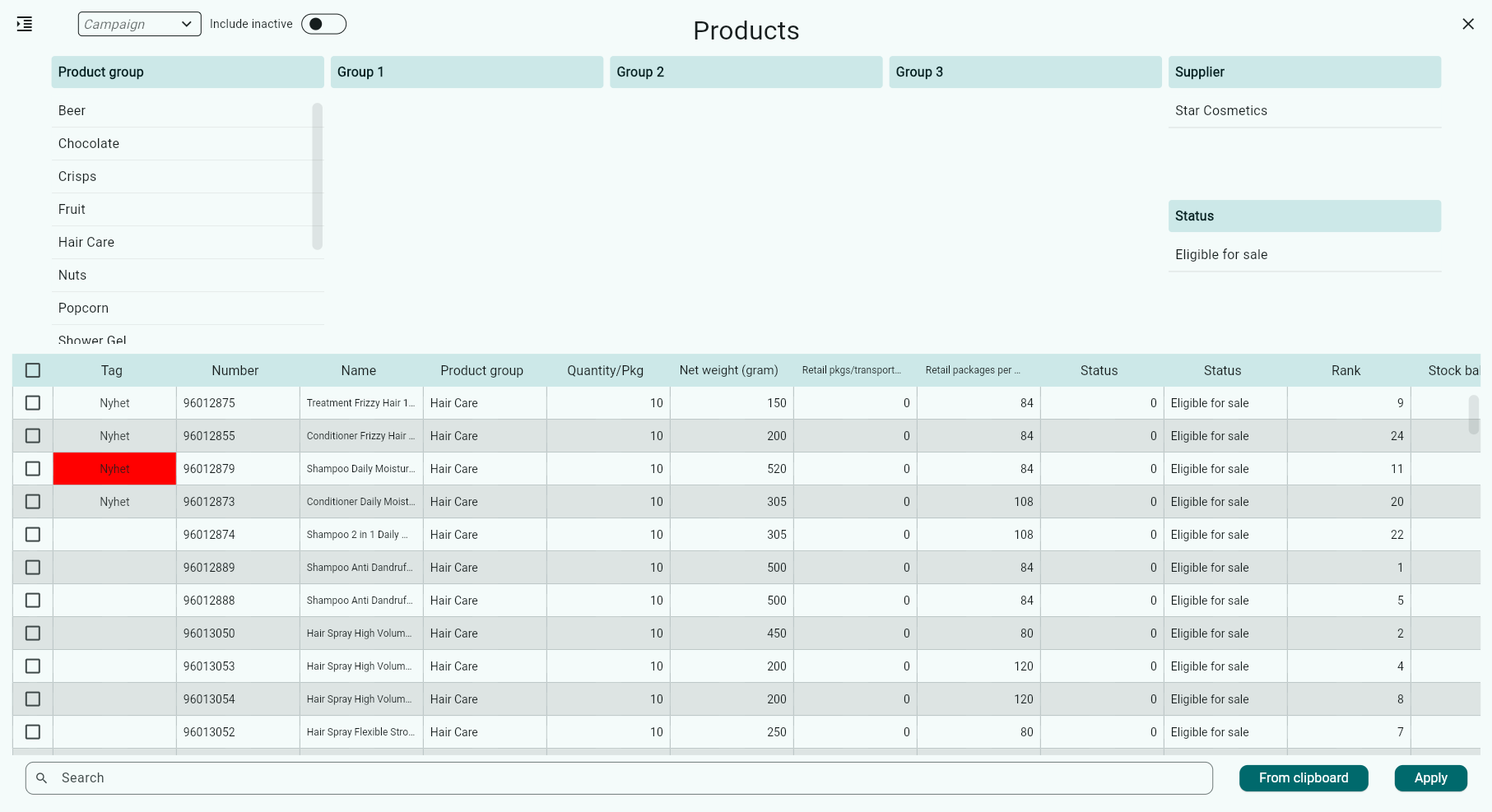
Check the articles you want to change the status for.
Click Apply.
Then click Search.
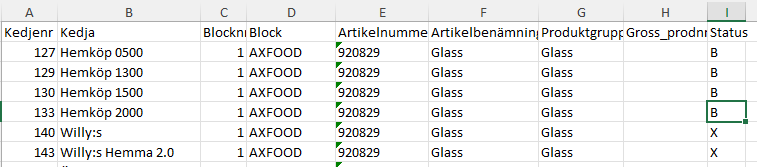
Export the list to Excel to easily adjust the statuses.
Start by unchecking the grouping.
Click Export.

Change the status in the column I Status.
You can only change to a status that is already set up in your system.
Note: Do not delete any columns or change the column order.
Save the Excel file.
Click Import from Template to upload the updated statuses.
Was this article helpful?
That’s Great!
Thank you for your feedback
Sorry! We couldn't be helpful
Thank you for your feedback
Feedback sent
We appreciate your effort and will try to fix the article